Malware Analysis Lab Setup + CAPEV2 Install Tips
Some stuff in this post is incorrect please view my Lab Update post
Lab Setup
I wanted to show my thought process on setting up my malware analysis lab and some tips for installing CAPEV2. My lab network is all physical devices to avoid any issues of malware not running because it detected it was on a VM.
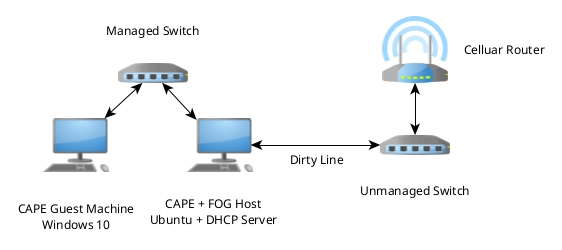
Both desktops are Dell Optiplexes refurbished off Ebay. The managed switch is a FS S2805S-8TF. I wanted to be able to setup VLANs for the CAPE host and guest machine. This is to prevent malware from discovering other devices on the lab network when I add them in the future. The unmanaged switch is for future expansion if I need it. I didn’t want my lab network anywhere near my regular network after doing some reading in the CAPEV2 docs and online I went with the cellular network route. The router is a GL-X750V2 (Spitz) and I used a T-Mobile internet only SIM. It has worked from day one with no issues and has a ton of features like the ability to use OpenVPN or WireGuard to change where the malware is connecting from.
CAPE Installation Tips
I used a combination of both the CAPEV2 docs and this article on Medium by Mario Henkel to get me through the pain.
-
Use the CAPEV2 docs for installing CAPE onto the host machine.
-
FOG requires a DHCP server to work so, I installed mine on the host machine using sc dhcp server. In the DHCP config file if your guest machine has a UEFI BIOS the undionly.kpxe for option bootfile-name will not work. You must use ipxe.efi instead.
-
In my guest machine BIOS in addition to moving the network card to being the first device to boot. I also had to enable UEFI Network stack to get FOG able to connect to it.
-
When enabling internet routing on per network analysis. Follow all the steps until you reach the final one which is adding your routing table name and routing table number into routing.conf. Instead of that enter the name of your network interface that will be the “dirty line” facing the internet. I am not sure why this step is not in the docs and I tried it randomly after finding someone having routing issues and this step was suggested. It looks like its working because I can see the network traffic form the guest machine but, when the analysis is running the guest machine doesn’t see its connected to the internet. I am also not sure if you can just add your network interface to the routing.conf first and be done.
-
There was not a definitive list online of ports that are need to be open for FOG to function correctly through a firewall. Below are the ports needed to be unblocked for FOG to work. I allowed both TCP and UDP taffic through.
- 21 FTP
- 37 Time Protocol
- 49 TACAS
- 66 DHCP
- 67 DHCP
- 68 DHCP
- 69 TFTP
- 111 RPC
- 137 NetBIOS
- 138 NetBIOS
- 1024 to 65535 Ephemeral Ports
- Disabling automatic updates and turning off Defender on Windows 10 is a slight nightmare. Unfortunately I don’t remember the guides I used but, I tried a few guides and I still see in the PCAP capture that Windows is looking for updates.